This is the migration sequence. The ways the app fails silently once it is running, and how to find them, are in When Your Jira Mail Handler Works But No Email Arrives. I link to it rather than repeat it.
Two customer-facing mailboxes on Jira Service Management Cloud were moved onto Email This Issue: one from the platform's built-in email channel, one from a legacy self-hosted instance of the same app. This is the process I wrote down afterwards. It is for moving any further mailbox the same way, and it is ordered by where things went wrong, not by where I expected them to.
One honest scope note. Everything in the build, test and cutover sections is something I did, twice. Two items in the after-cutover section, the comment-spike alert and the transport rule, are things I recommend and have not built yet, and I say so where they appear.
The Two Rules Everything Else Serves
One reader per mailbox
Jira gives no warning when two systems are configured to read the same inbox. Mine caused a mail loop that put several hundred duplicate comments on a single ticket over about ninety minutes (the full write-up). The failure was quiet in both directions: it made the app awkward to set up in the first place, and later produced the flood, and neither symptom pointed at the cause.
Before enabling any incoming connection against a mailbox, confirm all three of these places are clear for that address:
- Settings cog → System → Incoming Mail. Check for a mail handler and the separately listed mail server entry. Deleting a handler does not always delete the server definition underneath it.
- The space's Channels & self service → Email.
- Settings cog → Products → Jira Service Management → Email requests.
Disable before enable, never overlap
At cutover, fully disable the old reader, confirm it has stopped, then enable the new one. Rollback is the same thing in reverse. Both enabled at once is the one mistake that is not a clean rollback.
Survey the Source Before Planning Anything
If you are migrating from a legacy instance, inventory it first, while it is still running. Once it is switched off the configuration is gone and you are reconstructing from memory.
- How many incoming connections exist, and which mailboxes they serve.
- How many handlers, and which projects they target.
- How many templates and canned responses, and in which categories.
- Which notification configurations exist and what they send.
- Which of these are actually still in use.
Screenshot every handler's three tabs (Filter emails, Find issue, Rules and Actions). Side-by-side comparison is the only practical way to port a rules tree.
Document the Source Handler, and What Will Not Port
For the mailbox you are moving, record the target project and issue or request type, the default reporter, which filters are enabled, the full rules tree with every action in order, which templates it references, and whether it adds recipients as participants. That list is both your build spec and your comparison checklist afterwards.
What did not port cleanly from Server or Data Center
These are the ones I hit. The cloud column is what I found, not an exhaustive statement of the product.
| Server / Data Center | On Cloud |
|---|---|
Save senders and recipients | No direct equivalent. The nearest action, Add to Request Participants, behaves differently: it creates customer accounts and adds them as participants. Pointed at the To field it would add the mailbox itself as a participant, which is the loop mechanism. The safer substitute is Store non-Jira Recipients and Store Jira User Recipients on the Advanced Email Configuration, which write addresses to custom fields. |
| Contexts | Does not exist. Manual Email Configurations do that job. |
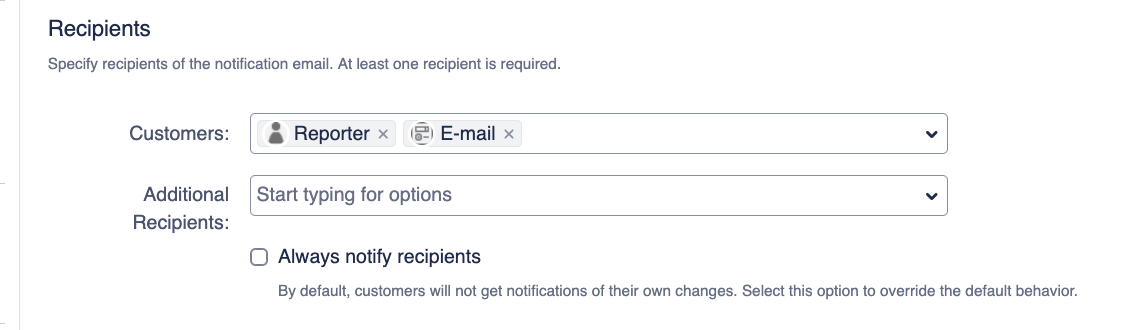
| The E-mail recipient type | Does not exist. Cloud resolves recipients against the issue, not the inbound message. This one matters a great deal; see the companion piece. |
| Move to folder after download | Not offered. Only mark as read or delete. |
| Notification suppression on Add comment | No such option. Handle it at the notification scheme level. |
| Sending via Jira's outgoing mail connection | No equivalent. You need an Email This Issue Outgoing Mail Connection with the From address set explicitly. |
The E-mail recipient type is worth seeing, because the legacy configuration that depended on it worked for years and nothing about it looks fragile:
Velocity in canned responses. Cloud canned responses take plain text only. Velocity and other codes are not supported, so any legacy response containing variables needs rewriting. Find out which do before you copy them across, not after.
Build the Inbound Side, Disabled
Build everything disabled. Nothing in this section touches the live mailbox.
The incoming connection
- Email This Issue console → Administration → Incoming Mail Connections → Add.
- Protocol: Microsoft Graph API with OAuth2, with your OAuth2 credential selected.
- Username: the mailbox address.
- Folder: blank for Inbox, or a full path with forward slashes for a subfolder, for example
Inbox/Subfolder. A bare subfolder name does not resolve, and a non-English mailbox needs the exact localised folder name. - After download: mark as read. Not delete.
- Test Connection, then save, and confirm it saved disabled.
If Test Connection fails on permissions, an Exchange access policy may be scoping the app registration to specific mailboxes and this one needs adding to its group. More on that under prerequisites.
The handler
A handler can bind to more than one incoming connection. That is how you run a test mailbox and the live mailbox through identical rules, and it means you never clone or rebuild the handler at cutover.
- Incoming Mails → Mail Handlers → Add, choosing the create-or-comment starter template. Do not start empty unless you want to rebuild the tree by hand.
- Pencil icon: add the incoming connection and set the Default reporter.
- Cog → Filter emails: enable Emails sent from jira, Bulk emails, Auto reply emails and Delivery status notifications.
- Cog → Find issue: see below.
- Cog → Rules and Actions: build the tree from your notes.
Make the Default reporter a service account, not a named person. A person's account becomes a dependency that breaks when they leave.
Lookup by mail headers: I leave it off. That option matches inbound mail against stored Message-IDs, and on my instance it routed a message to an issue in an entirely different project. I do not know why, and I have not had it explained, so I am reporting what I saw rather than a mechanism. Lookup by the issue key in the subject is always on and cannot be disabled, which is enough provided your outbound subjects carry the key.
The Create issue action
The defaults on this panel are wrong for a customer-facing mailbox in three places, all easy to miss:
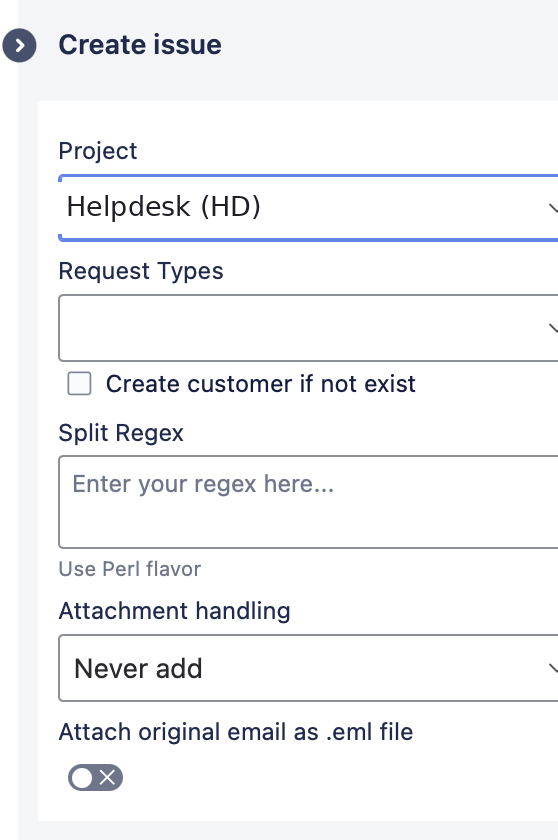
- Create customer if not exist: tick it. Without it, a sender with no existing account falls back to the Default reporter and the original address is lost from the ticket entirely.
- Attachment handling: change it from Never add to Always add unless you deliberately want attachments dropped.
- Request Types: mandatory on a service project, and it matters more than it looks. A request with no Request Type cannot be viewed on the portal, so a customer's reply fails. I used a request type hidden from the portal and purpose-built for email-originated tickets. The mechanics are in the companion piece.
Field validation. Any field a Set field value action writes must be present on the request type's form, or creation fails with The field 'X' is not valid for this request type. Check before testing. In my case it was Labels, and the fix was adding the field to the request type's form in project settings.
Build the Outbound Side
The outgoing connection
- Outgoing Mails → Outgoing Mail Connections → Add. Protocol: Microsoft Graph API with OAuth2, same credential.
- From Address and Reply-to Address: the customer-facing address, both.
- Username: see the note below.
- Test Connection, save, then enable it. Connections are created disabled.
- Send Test Email to confirm.
Username versus From Address. If the mailbox's sign-in identity differs from its primary address, which happens with directory-synced accounts, Graph refused to send with ErrorSendAsDenied. The authenticating identity needs Send As on the address in the From field. I granted it in the Exchange admin centre under the mailbox's Delegation settings and allowed time to propagate. Write down which account holds Send As on which mailbox: it becomes an invisible dependency, and if someone tidies permissions later, outbound stops with a 403 and no obvious cause.
The notification scheme
- Outgoing Mails → Email Notification Schemes → Add. Scope it to the project, leaving Issue Types empty unless you need it narrower.
- Add one Email Notification per event.
On each notification:
- Scope – WHEN: the event, with both of the Event's trigger toggles on, including By mail handler.
- Scope – WHO: Reporter, not Assignee.
- Scope – WHAT: the template, with the issue key in the Subject.
- Additional Settings: Include own changes: ON. Without it, a notification addressed only to Reporter on a mail-handler-created ticket sends to nobody. The full explanation, and the side effect on comment notifications, is in the companion piece.
On a comment notification also enable Add current comment to email body, so the customer sees the message inline.
Event availability. There is no Service Desk Request Created event. Issue Created is the correct and only choice, even for JSM requests.
Template event tagging. A template carries an event tag, and it has to match the notification's selected event or nothing sends. If a template was built for one event and the notification listens for another, the mismatch is invisible until you look at the badge beside the template name.
The Advanced Email Configuration
This is the step that will catch you on the second project. The first one works without it because it uses the default connection.
- Outgoing Mails → Advanced Email Configuration → Add.
- Scope: the project, all issue types. Email Triggers: enable all of them.
- Advanced tab: Use default SMTP off, SMTP Server set to this project's outgoing connection, Add Bulk header on, Add auto-generated header on.
Set the SMTP server explicitly rather than trusting the default to cover it. What I saw without it, and how that compares with what the documentation says should happen, is written up honestly in the companion piece. The two header toggles stamp outbound mail so the inbound reject filters catch it if it ever returns. That is half the loop protection and should not be removed.
Recipient Restrictions
- Outgoing Mails → Recipient Restrictions.
- Add the mailbox address to the blacklist as an escaped regular expression, for example
mailbox@domain\.com, and add every alias separately.
This stops the app sending to its own ingest address. The consequence: you cannot test the round trip by emailing in from the ingest address, because it is stripped at delivery. Test from an external address.
Templates and canned responses
- Templates live under Outgoing Mails → Templates. Choose the Empty theme when pasting complete content from a legacy instance; the other themes generate structure that gets in the way.
- Use the Preview tab (F9 while editing) against a real issue. It shows which variables resolve far faster than sending test emails.
- Use
$!variablerather than${variable}. The first outputs nothing when the value is null; the second renders the literal variable text into the customer's email. - Canned responses are scoped through Manual Email Configurations, not by category name. Each configuration has a scope of projects, issue types and an optional JQL filter, and lists which categories appear on the email screen. One configuration per issue type, plus a fallback scoped to the project with issue types empty.
A template scoped to a value that does not exist is silently absent from the agent's picker rather than erroring, so verify per batch, not at the end.
Test Before Cutover, as a Customer
Test against a separate test mailbox, added as a second connection on the same handler. The live mailbox stays untouched on the old system throughout.
The basic path
- Enable the test connection and send one email from an external address.
- Check the ticket: right project, right request type, right fields, reporter is the sender, attachments present, summary matches the subject.
- Check the sender received exactly one acknowledgement, with the issue key in the subject.
- Reply to it and confirm the reply comments on the existing ticket rather than creating a duplicate.
- Administration → Incoming Mail Log, category
execute handler: confirm a clean run with no ERROR lines.
Test as a customer, not as yourself
This masked several failures for me, and it is the single most useful thing in this piece. An administrator testing with their own account is the one case where several of these problems do not reproduce. You have browse permission, so a missing Request Type does not bite. You are the triggering user, so notification suppression behaves differently. Your address may resolve to an existing account where a real customer's would not.
Test from an address with no relationship to the instance: a personal address, or a colleague's external one.
Test the reply-matching risk
Worth doing before cutover because it tells you how much duplicate noise to expect afterwards. Take a notification the old system sent about an existing ticket, reply to it from an external address with the subject intact, and send it to the test mailbox.
- It comments on the existing ticket: subject-key matching works and thread continuity is fine.
- It creates a new ticket: expect duplicates when customers reply to old threads after cutover.
There is no supported way to import the old instance's stored Message-IDs, so this risk is inherent to switching engines. Brief the agents to merge duplicates rather than answer them separately.
Test reply-all
Email in from an external address with the ingest mailbox deliberately in CC. Confirm one comment results and nothing lands back in the mailbox. That validates the Recipient Restrictions entry.
The Cutover
Before you start
- Note the time.
- Note the highest existing ticket key in the target project, so anything created by a failed attempt can be identified.
- Confirm someone can watch the mailbox.
- Have the pre-cutover checklist at the end of this piece complete.
1. Stop the old reader
- Disable the old instance's incoming connection for that address.
- Confirm it shows as disabled.
- Wait two minutes for anything in flight.
2. Verify nothing else reads the mailbox
Re-check the three places from the first rule. Do not skip this because you checked earlier: something may have been re-enabled, and this is the check that prevents a repeat of the incident.
3. Prepare the mailbox
- Open the mailbox and look at the Inbox message count.
- Move anything you do not want turned into tickets into an archive folder.
- Leave genuine unprocessed customer mail in place.
This step is not optional. The app's own documentation says that on first enable it downloads every email in the target folder, read or unread. A mailbox with months of history produces months of tickets.
4. Switch over
- Edit the outgoing connection: change From Address and Reply-to Address to the live address, and rename it.
- Save, then re-enable it. In my experience, editing leaves an enabled connection disabled. The documentation says this of incoming connections; I saw it on the outgoing one too.
- Send Test Email to confirm.
- Add the live address to Recipient Restrictions.
- Enable the live incoming connection.
- Read the estimate dialog. A small count means step 3 worked. A large count means cancel and go back.
5. Verify
- Send one email from an external address.
- Confirm: one ticket, right project and request type, right fields, reporter is the sender, one acknowledgement.
- Reply and confirm it comments rather than duplicating.
- Check the Incoming Mail Log for a clean run.
The abort button, and rollback
Disabling the incoming connection stops all ingestion immediately. If anything multiplies or looks wrong, disable first and diagnose afterwards.
To roll back: disable the new incoming connection, re-enable the old instance's one, then identify and deal with anything created after your noted start time. Leave the old connection disabled rather than deleted until you are confident. I would give it a fortnight of normal traffic; that figure is my judgement, not a rule.
After Cutover
Notification handover
The built-in customer notifications will still be sending alongside the app's, producing duplicates. Turn them off one at a time, confirming the app's equivalent works before each. Space settings → Notifications → Customer notifications. Leave Internal notifications alone; agents need them. Turn them off before the app's are confirmed working and customers get silence, and nobody notices until someone complains about being ignored.
Reply-To
Check the project's email channel for a Reply-to address. If the built-in channel is still sending notifications that carry its own address, customers reply there rather than to the mailbox you read, and those replies disappear from your side. There are three places a Reply-to can be set; the companion piece lists them.
Processed mail
The app offers mark-as-read or delete only. If you want processed mail archived out of the Inbox, do it on the Exchange side with a rule keyed on read status plus age, never on arrival. An arrival-triggered rule moves mail before the app reads it and starves the handler. Seven days is safe.
A comment-spike alert. Something that flags an issue receiving more than roughly twenty comments in an hour, because nothing legitimate does that. Jira automation has no native rate-based condition, so it needs a counter field or a scheduled JQL rule. My mail loop ran ninety minutes unobserved, and detection is what turns an incident into a non-event. This is the one I would prioritise, and it is not done.
An Exchange transport rule on the mailbox, scoped on Precedence: bulk or Auto-Submitted, redirecting to a review mailbox rather than deleting, since a deleted message is a lost customer reply nobody will ever know about. Also not built. Note that an extra rule on those headers needs care: the app's own outbound can carry them too.
Infrastructure Prerequisites
Graph permissions. The Entra app registration needs Mail.ReadWrite, Mail.Send and User.Read.All as application permissions with admin consent, or the delegated equivalents with Full Access and Send As on the shared mailbox.
Scope the application permission. An app holding application-level Mail.Send with no Exchange scoping can send as any mailbox in the tenant. I have not confirmed whether the tenant I worked in has such a policy in place; that is an open item, not a finding. Microsoft's current documentation says the older Application Access Policies are being replaced by RBAC for Applications and advises against creating new policies. I know of no admin-centre screen for either: it is PowerShell. Check Microsoft's current guidance when you do this, and note that I have not verified how the app behaves under the newer model.
Client secret expiry. Put the date in a calendar reminder. Secrets created in the Entra admin centre can run to 24 months, and a tenant policy can cap them lower, so look at what you actually chose. A silently expired secret stops all helpdesk mail with an unhelpful error, and nobody connects the two events.
Sent Items. If a Graph-sent message does not appear in the mailbox's Sent Items, do not read that as proof it was not sent. The API's own default is to save a copy, so I do not know why mine did not; the audit log and message trace are the surfaces to trust.
Pre-Cutover Checklist
- Incoming connection created, Test Connection passes, currently disabled.
- Handler built, bound to that connection, Default reporter set to a service account.
- Filters on: Emails sent from jira, Bulk emails, Auto reply emails, Delivery status notifications.
- Find issue: subject key lookup only; mail-header lookup off.
- Create issue: request type set, Create customer if not exist ticked, Attachment handling Always add.
- Any field written by Set field value exists on the request type's form.
- Outgoing connection created, From and Reply-to correct, enabled, Send Test Email works.
- Notification scheme scoped to the project; Include own changes on; both trigger toggles on; Reporter as recipient; issue key in the subject.
- Template event tag matches the notification's event.
- Advanced Email Configuration scoped to the project: Use default SMTP off, SMTP Server set, both header toggles on.
- Recipient Restrictions contain the real mailbox address and every alias as escaped regexes.
- End-to-end test passed against the test mailbox, from an external address: ticket, request type, fields, reporter, one acknowledgement, reply matched, reply-all clean.
- Reply-matching risk measured, and agents briefed on duplicates.
Closing Thoughts
The whole sequence is built around two mistakes that cost the most: two readers on one mailbox, and testing as an administrator. Everything else is a consequence of the app having more moving parts than any one screen shows. Build disabled, test as a customer from outside, stop the old reader before starting the new one, read the estimate dialog, and keep the abort button in mind. If you hold to those, the rest is bookkeeping.
← All guides