Azure Update Manager patches on a schedule you define, and for a Windows estate the interesting decisions are not in the portal wizard. They are how many schedules to have, when each one runs relative to Microsoft's release day, and how you find out afterwards that it actually happened. This is the design I would use, the exact recurrence for “two weeks after Patch Tuesday”, and a gap I found in my own current schedules.
Scope note. The machines are Arc-enabled Windows servers, enrolled as described in the onboarding guide. I have run schedules like these but have not run the revised design below, so it is a recommendation, not a record of what I deployed. The last section separates what is documented from what I saw myself.
What This Is For
The estate is six domain controllers across three domains (two per domain), two SQL servers and four application servers, on AWS, Hyper-V, VMware and Azure. There is no WSUS. The rule I work to is to install updates about two weeks after Microsoft releases them, so there is time to hear about a bad update and block it before it reaches production. Reboots are allowed when an update needs one.
How a Maintenance Configuration Works
A maintenance configuration is an Azure resource that holds a schedule: a start time and time zone, a recurrence, a duration, a reboot setting and the update types to install. You then assign machines to it. For Arc-enabled servers the scope is Guest. A machine can be assigned to more than one configuration, which is how you would layer a one-off on top of a routine schedule.
Details from Microsoft's documentation that shape the design:
- The maximum maintenance window is 3 hours 55 minutes. If an installation overruns, it is not killed, but remaining updates may be skipped.
- Monthly recurrence can be on a day of the month, or on the Nth weekday with an optional offset of up to six days either way.
- Reboot options are reboot if required, never reboot, or always reboot. “Never reboot” can still be overridden by Group Policy or registry settings on the machine.
- On Arc-enabled machines Update Manager does not change the registry, so Group Policy fully controls update behaviour. A forgotten policy can quietly defeat a schedule.
- After a reboot, Update Manager waits up to 25 minutes for an Arc machine to come back.
- Drivers are not supported. You can include or exclude individual KB numbers.
- There are service limits, for example 250 schedules per subscription per region and 3,000 machine assignments per schedule. A small estate will not meet either.
Design: One Configuration per Domain and Tier
This is what the configuration list looks like in my subscription, with names replaced:
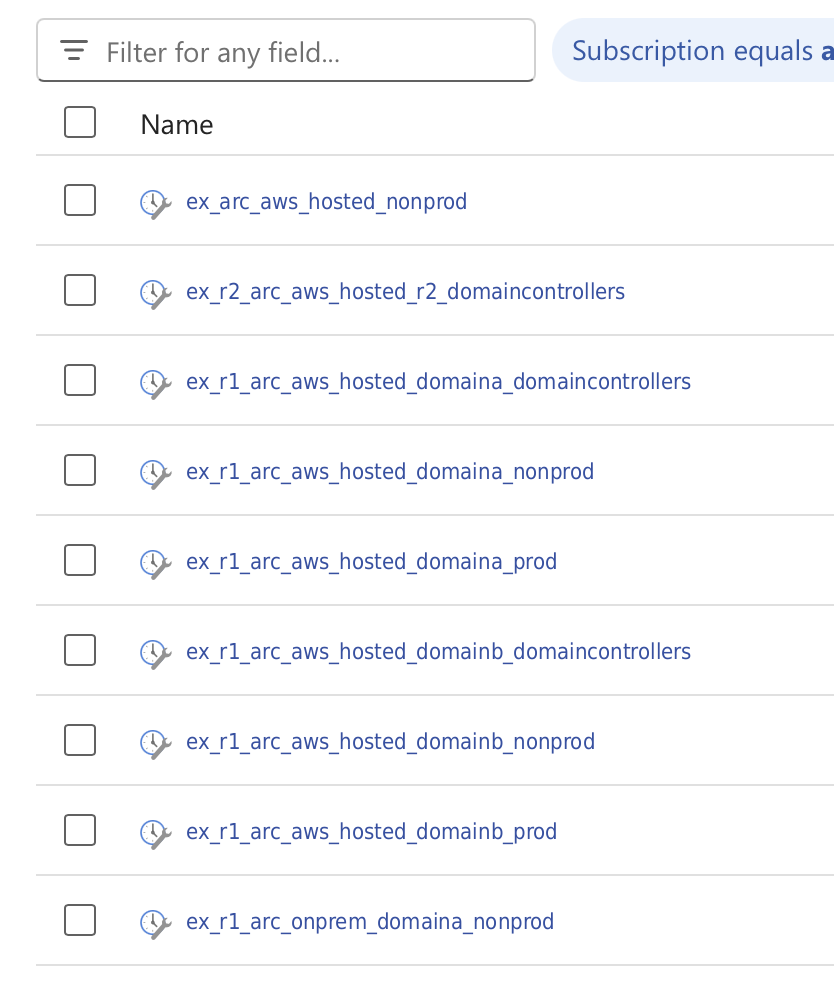
One configuration per domain per tier has a good side and a bad side. The good side is that every machine's patch time is obvious from the name of the configuration it belongs to, which matters when you are deciding whether a server was patched on time. The bad side is that changing the policy means editing every configuration. At ten servers that is fine. If it grows, look at tag-based dynamic scoping, which Microsoft documents for assigning machines to a configuration by filter. I have not used it.
I would keep three tiers:
- Non-production goes first, to find a bad update before production sees it.
- Production member servers (SQL and application) go a week later.
- Domain controllers go with production, or a day after. In this estate rebooting both controllers in a domain together was an accepted choice. The one thing to hold in mind is that a domain with both controllers rebooting in the same window has a short period with no controller available. If you ever want to remove that, the smallest change is two configurations per domain a day apart.
Timing: “Two Weeks After Patch Tuesday”
Patch Tuesday is the second Tuesday of the month, which can fall on any date from the 8th to the 14th. Two weeks later is therefore always the fourth Tuesday, on a date from the 22nd to the 28th. That gives you a recurrence which is exact every month, with no arithmetic: monthly, on the fourth Tuesday.
My current configurations do not do this. This is the schedule view of one of them when I captured it:
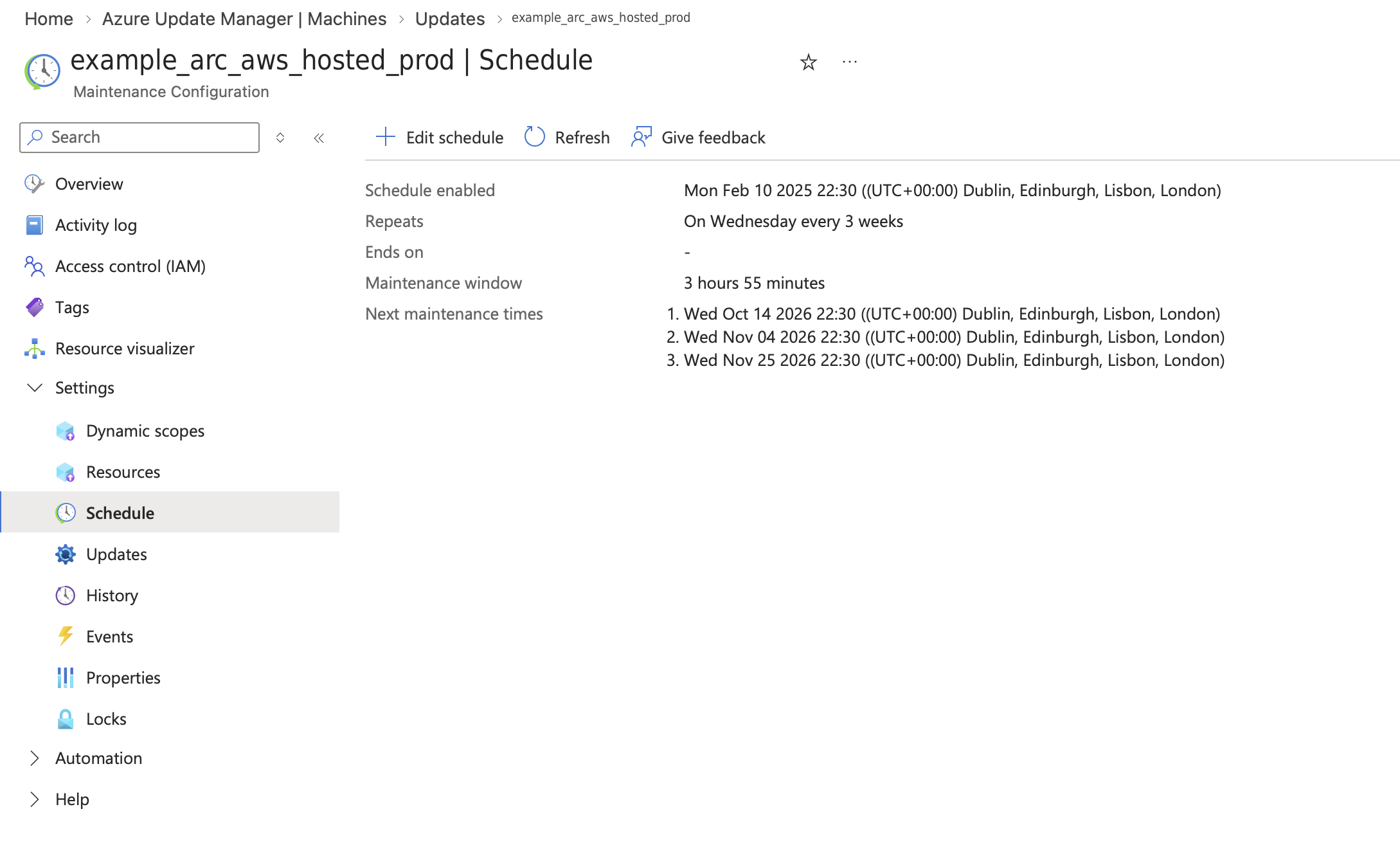
“Every 3 weeks” is a fixed interval, so it drifts against a monthly release. The next three runs shown are 14 October, 4 November and 25 November 2026. Patch Tuesday was 13 October, so the first run is one day after release. The next Patch Tuesday is 10 November, so the 4 November run lands before that month's updates exist and installs nothing new. The 25 November run, 15 days after release, happens to be near the target. Only the runs that land at the right distance do what the policy says, and which ones do changes through the year. I am pointing this out about my own setup because it is easy to miss: the schedule looks regular and each run succeeds, so nothing flags it.
Staging, using the fourth Tuesday as production:
| Tier | Recurrence | Days after release | Why |
|---|---|---|---|
| Non-production | Monthly, third Tuesday | Exactly 7 | A week of warning before production |
| Production and domain controllers | Monthly, fourth Tuesday | Exactly 14 | Your two-week rule, with room to block a bad update |
The third Tuesday is always 7 days after Patch Tuesday and the fourth is always 14, because Patch Tuesday is itself the second Tuesday. If you would rather run on the Wednesday, keep the weekday option and add an offset of +1 day. The offset is limited to six days either way, so it cannot move you to a different week. Pick the week with the weekday option and use the offset only to nudge the day.
Setting Up the Fourth-Tuesday Schedule
For each existing configuration, edit its schedule. This is from the documentation and from the schedule screen above; I have not stepped through the monthly option in the portal, so treat the wording of the options as approximate.
- Open the maintenance configuration and go to its schedule settings.
- Set the start date to the first run you want. Choose a date that is itself a fourth Tuesday, so the first run is not a surprise.
- Set the time zone and start time. Pick a time when the servers are quiet. Use the time zone rather than computing from UTC.
- Set the maximum duration (see below).
- Set Repeats to monthly, and choose the weekday option: fourth Tuesday. Use an offset only if you want the Wednesday.
- Save, and read the preview of the next run dates. For October and November 2026 the fourth Tuesdays are 27 October and 24 November. If the preview shows something else, the recurrence is wrong.
- For non-production, do the same with the third Tuesday: 20 October and 17 November 2026.
Do the preview check on every configuration. It is the cheapest test there is, and the case that caught me out in my own setup would have been visible straight away.
Window, Reboots and Update Types
Window. The longest you can have is 3 hours 55 minutes, which is what mine already use. For a cumulative update on a small server that is generous, and a long window costs nothing if nothing is waiting. SQL and application servers are the ones I would watch, because services that take a while to stop and start eat into it.
Reboots. The policy is to reboot if required. That is what the current configurations use, and it is the sensible setting for monthly cumulative updates, which nearly always require one. My older runbook said “never auto reboot”; that was true of an earlier setup, and it is not how things are configured now. Whichever you choose, remember the Group Policy caveat above.
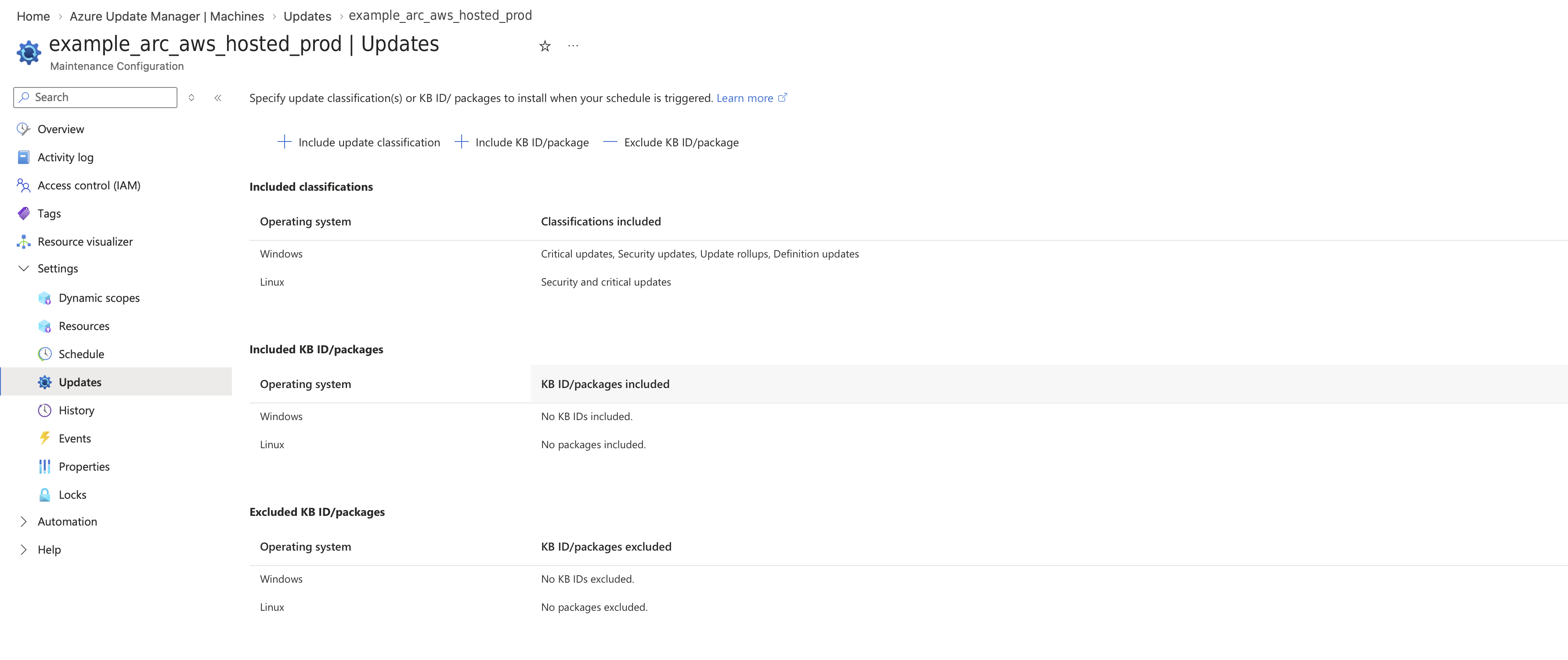
Update types. The Windows classifications the configuration includes are Critical updates, Security updates, Update rollups and Definition updates. That covers what people usually mean by patching a Windows server. Whether the monthly cumulative update shows as Security or as an Update rollup in an assessment is something I have not checked on these servers. Open an assessment result for one machine and look, because that tells you whether your selection covers the update you care about. Drivers are not supported (I have seen a driver listed as Unsupported in a machine's pending list), and feature updates are not part of this.
I deliberately do not include the Updates classification. In my pending lists it covers things like the Azure Connected Machine agent and PowerShell, which are not Windows patches, and a policy of Windows patches only should not install them. They stay pending in the portal, which is fine. Keep the agent current separately, as described in the onboarding guide. Any alert you build should filter to the classifications you actually patch, or those rows will keep it firing.
Checking It Worked, and Alerting When It Did Not
Today I check by opening Azure Update Manager, and I do not look often. That is a pattern to avoid, because a schedule that works for months and then silently stops looks identical to one that works.
Two things to do:
- Turn on periodic assessment so each machine reports pending updates regularly, independent of the patch window. Then the pending-updates view shows what is outstanding after each run.
- Add an Update Manager alert. Update Manager has alerts, currently in preview, built on Azure Resource Graph queries. Microsoft's documentation says the alert needs a managed identity with Reader access, and it has a “Notify me” step for choosing who is emailed. Results are limited to 1,000 rows, and the alert reads the last 7 days of assessment data and the last 30 days of installation results.
The alerts I would want, in order:
- A machine with an installation failure in the last run.
- A machine with critical or security updates still pending a set number of days after the production date.
- A machine whose assessment has not updated recently, meaning it is not reporting.
I have not set up these alerts. The documentation describes the feature, but it is in preview and I have not confirmed the portal wording or the exact queries, so I would build one for a single configuration, trigger it deliberately, and see the email before relying on it. Also keep a monthly habit: the day after each production window, open the history for the configurations and check that the run happened and how many machines it covered.
Cost and End-of-Support Dates
Update Manager is free for Azure VMs. For Arc-enabled servers Microsoft documents a per-server, per-month charge, billed by the day for days the machine is connected and managed, unless one of these applies: the server has Extended Security Updates enabled through Arc, the subscription has Defender for Servers Plan 2, or Windows Server Software Assurance, subscription or pay-as-you-go licensing is enabled through Arc. I am deliberately not quoting a price, because the pricing page I checked did not show one.
Two cautions. First, the Defender column in the Arc machine list shows that the Defender extension is installed, not that Plan 2 is enabled on the subscription. Mine is deployed by script or Group Policy, so it does not prove the exemption. Check the plan on the subscription. Second, the 2012 R2 servers are covered by ESU, and that ends on 13 October 2026 with no further year. My inference, not something I have seen on a bill, is that after ESU lapses those machines would no longer be exempt on that ground. They are being migrated to Windows Server 2025 as part of application moves, so the question may be moot. Windows Server 2016 reaches end of support on 12 January 2027, so any 2016 servers belong on the same list.
Checking What You Are Actually Charged
Do not rely on reading the rules and assuming. Cost analysis shows what each Arc server was billed.
- Open Cost Management → Cost analysis at the subscription scope.
- Set the date range to the last full calendar month. A partial month gives you a partial number.
- Group by Resource, and filter on the resource type you are interested in. The Arc machines are
microsoft.hybridcompute/machines. ESU licences, if you bought them through Arc, are separate resources of typemicrosoft.hybridcompute/licensesand are billed on their own lines, not on the machine. - Expand a machine row to see its service lines. On my covered servers the Azure Update Manager line is a meter called Complementary Benefits Server at zero, next to a Defender for Servers P2 line that carries the cost. Microsoft's documentation does not name that meter, so this is something I saw on a bill, not something I can point you to a page for. A server that is paying for Update Manager would show a normal charge on that line instead.
Two things this view catches that nothing else does. The first is a server that is being charged and should not be: check that every Arc server shows the zero benefit line. The second is a server that is switched off and still costing money. Licence resources and Arc machine resources outlive the server they describe, and each bills until you delete it. When a server is decommissioned, remove its ESU licence resource if it has one, and remove the Arc machine resource as well, or the Defender line on the machine carries on. To estimate what removing them saves, take the last full month's figure for those rows, which is the monthly amount if nothing else changes.
One caution on that estimate. ESU for Windows Server 2012 R2 ended on 13 October 2026, and I would expect ESU licence billing to end with it. Removing the licences then protects you from any further charge, but it does not create a saving every month from here on. The machine-level lines are the ones that can continue.
Other Environments
Hosting does not change the schedule once a machine is Arc-enabled: an AWS instance, a Hyper-V guest and a VMware VM are all the same kind of resource. What differs is what else is touching updates on that machine, such as a cloud-provider patch tool, a Group Policy object, or a third-party agent. I have onboarded AWS and on-premises servers myself. For Azure-hosted VMs the same configurations work with no agent step, and for those I have only the documentation. Wherever you have more than one patching mechanism, decide which one owns the machine and switch the others off.
What Is Documented, Observed, or Unverified
First-hand: the configuration list, schedule and classifications in the screenshots are my own, as are the every-3-weeks drift and the reboot-if-required setting. I check results by opening Update Manager. I have seen the Complementary Benefits meter at zero on a covered server's bill, a driver listed as Unsupported, and the Azure Connected Machine agent and PowerShell listed under the Updates classification.
Documented by Microsoft: the 3h55m maximum window; Nth-weekday monthly recurrence with a six-day offset; reboot options and the Group Policy override; Arc machines and Group Policy; the 25-minute reboot wait; drivers unsupported; KB include and exclude; service limits; Update Manager alerts as a preview feature and their requirements; the cost model and its exemptions; the 13 October 2026 end of ESU for 2012 R2 and the 12 January 2027 end of support for 2016.
Inferred: that the fourth Tuesday is always 14 days after Patch Tuesday (calendar arithmetic); that machines would lose the cost exemption once ESU lapses.
Not verified: the portal wording of the monthly option; how the monthly cumulative update is classified on these servers; the alert queries and portal steps; whether whether every server in an estate is covered by Plan 2 (I confirmed it on one machine's bill); the revised staged design, which I have not run.
Closing Thoughts
The part worth getting right is not the wizard. Use a monthly weekday recurrence so the schedule follows Microsoft's release calendar, stage non-production a week ahead, and put an alert on the outcome so a quiet failure does not stay quiet.
← All guides